
Before you travel with your laptop, adjust your power settings to maximize battery life by choosing energy-saving modes and dimming the screen. Enable firewalls and encryption to protect your data on public networks. Set up trusted Wi-Fi hotspots and consider using a VPN for added security. Update all software, back up important files, and disable unnecessary notifications. To guarantee smooth use and stay secure, explore these essential steps further to prepare your device effectively.

Get travel and outdoor gear delivered free with Prime
- Fast, free delivery on millions of items
- Prime Video, Amazon Music and more included
- Member-only deals all year
Key Takeaways
- Enable power-saving modes, reduce screen brightness, and close unnecessary apps to extend battery life during travel.
- Activate firewalls, update antivirus, and use encryption to secure data on public or insecure networks.
- Set up trusted Wi-Fi networks, disable sharing, and utilize VPNs to ensure secure internet access abroad.
- Backup important files to cloud storage or external drives and ensure all software and security patches are current.
- Disable non-essential notifications, turn off location services, and lock devices with PINs or biometrics for added security.
As an affiliate, we earn on qualifying purchases.
Set Your Power Options to Save Battery While Traveling
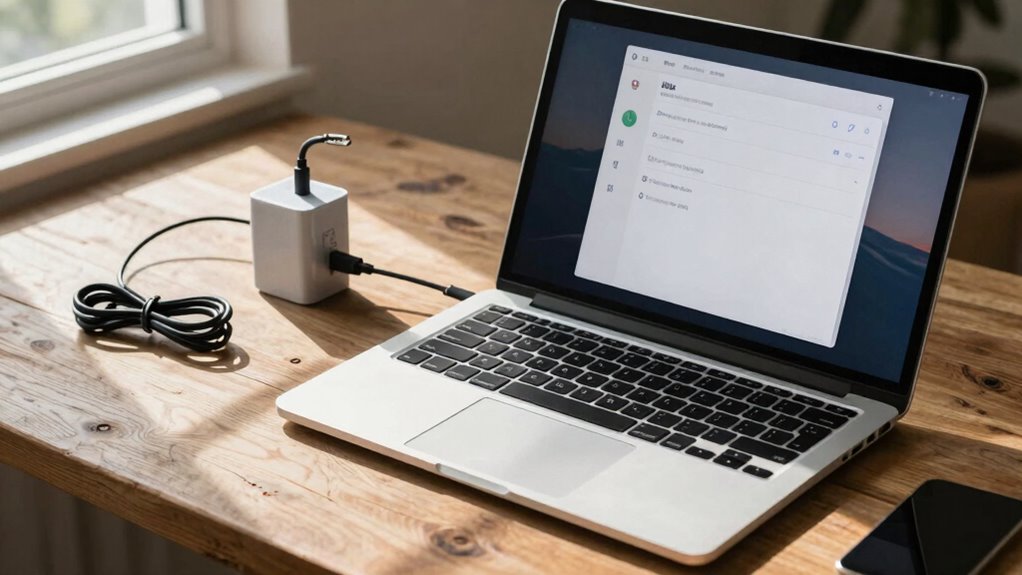
When you’re traveling, conserving your laptop’s battery becomes essential, especially when power outlets are scarce. Adjusting your power options helps maximize battery life through effective power management and battery optimization. Start by selecting a power plan designed for energy saving, like “Power Saver” or creating a custom plan. Reduce screen brightness and set shorter timeouts for sleep mode to minimize energy consumption. Disable Wi-Fi or Bluetooth when not in use to prevent unnecessary drain. Turning off unused hardware and closing background apps also helps conserve power. Additionally, power management techniques like monitoring your battery health and optimizing device settings can further extend your laptop’s runtime. Keeping your device’s battery health in check and avoiding extreme temperatures are also key to maintaining optimal performance. Implementing these power-saving features ensures your device uses resources efficiently, giving you more time between charges and reducing the risk of running out of battery when you need your device most. For example, adjusting display settings can significantly impact battery longevity by reducing power drawn for screen operation. To further enhance battery life, consider adjusting system settings to reduce background activity and disable automatic updates during travel.
As an affiliate, we earn on qualifying purchases.
Turn On Security Features Like Firewalls and Encryption
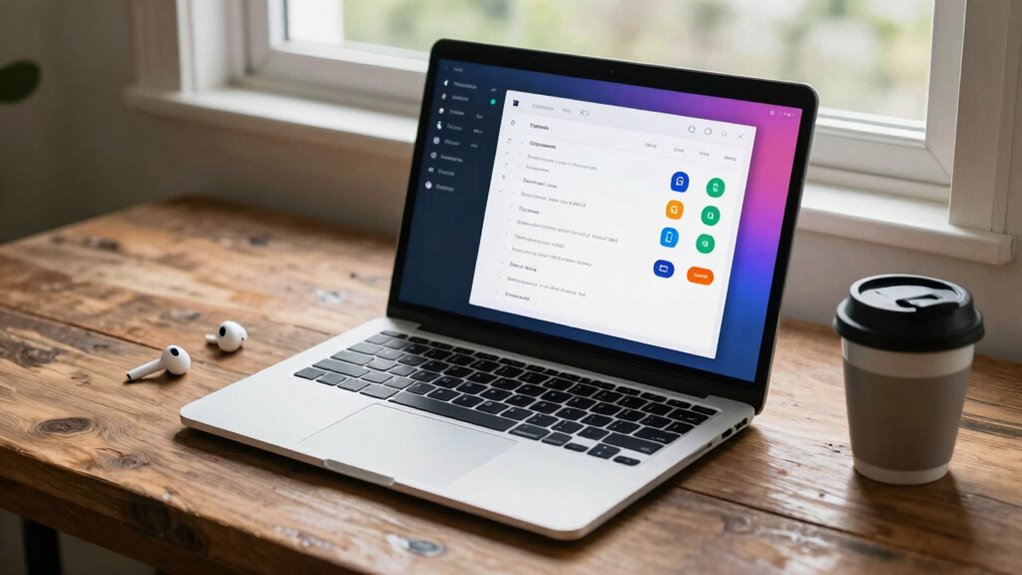
Are you aware of how easily hackers can access your data when you’re on the go? Turning on security features like firewalls is essential to block unauthorized access. Make sure your antivirus protection is active and up to date, providing real-time defense against malware and viruses. Encryption adds an extra layer of security, especially if you’re using public Wi-Fi, by scrambling your data so it’s unreadable to outsiders. Additionally, strengthen your password management by using complex, unique passwords for each account and enabling multi-factor authentication where possible. Implementing performance-enhancing upgrades such as a reliable flywheel and engine modifications can also help protect your vehicle’s system from cyber threats that target automotive electronics. Being aware of cybersecurity best practices is crucial to proactively defend against emerging threats. Regularly reviewing your network security settings can help identify vulnerabilities before they are exploited. Staying informed about security threats allows you to adapt your defenses to new risks as they develop. These steps help safeguard sensitive information, even if your device is lost or stolen. Incorporating security protocols like regular software updates and network monitoring can further enhance your defenses. Taking these precautions before travel ensures your data remains protected amid potential threats, giving you peace of mind to focus on your trip.
As an affiliate, we earn on qualifying purchases.
Configure Wi-Fi and Network Settings for Reliable Internet
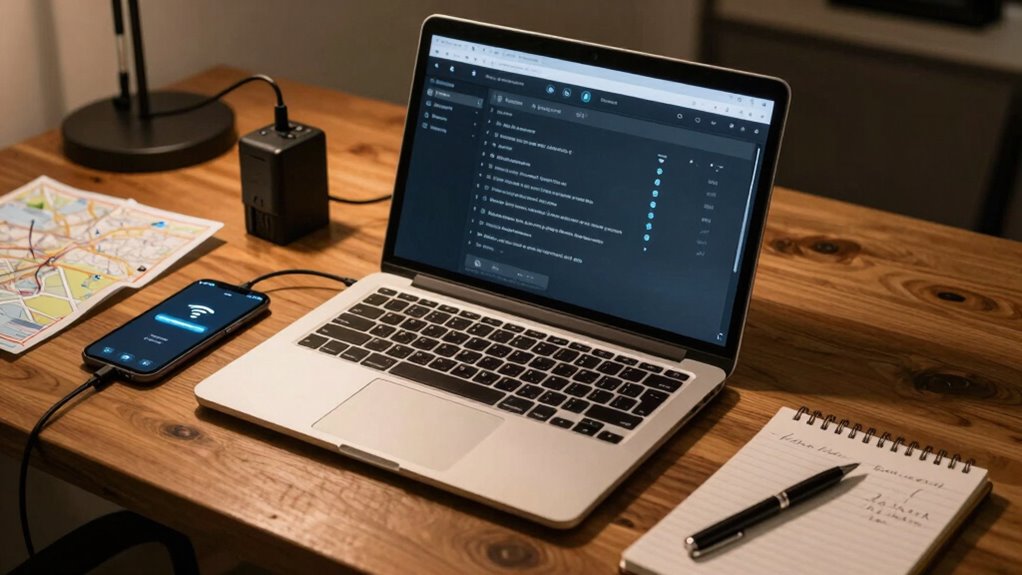
To guarantee a stable and secure internet connection while traveling, you need to configure your Wi-Fi and network settings properly. Start by setting up a hotspot if your hotel Wi-Fi is unreliable or restricted. Ensure your hotspot setup is secure with a strong password to prevent unauthorized access. When connecting to public networks, disable sharing options and use a VPN for added security. Familiarize yourself with network troubleshooting steps, such as renewing your IP address or resetting network adapters, to quickly resolve connectivity issues. Keep your network preferences optimized by prioritizing trusted networks and forgetting unfamiliar ones. Additionally, understanding network security protocols helps protect your data from potential threats. Regularly updating your device’s firmware can also help mitigate security vulnerabilities for enhanced protection. Being aware of Wi-Fi encryption standards can further enhance your network security. Recognizing the importance of secure network configurations can prevent many common security issues. Implementing proper wiring practices when setting up your devices can reduce risks related to heat buildup and electrical hazards. These adjustments help maintain a reliable connection and protect your data, making your travel experience smoother and more secure.
As an affiliate, we earn on qualifying purchases.
Update Software and Back Up Your Files Before You Travel
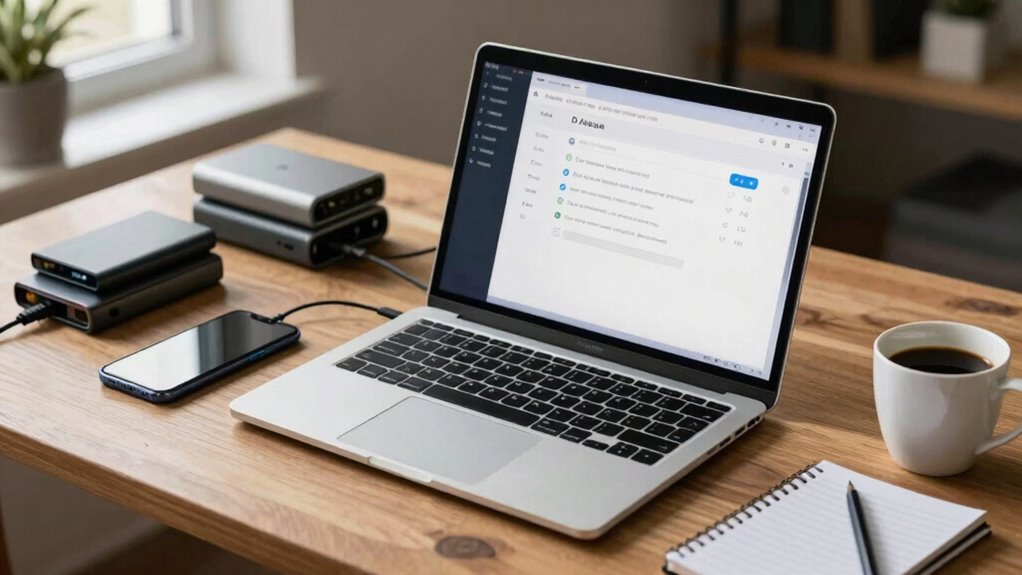
Updating your software and backing up your files before traveling guarantees your laptop stays secure and runs smoothly on the go. Start by installing the latest antivirus updates to protect against malware and security threats. Then, verify all your software is up to date, including system patches and security fixes, to prevent vulnerabilities. Use cloud storage to back up important files automatically, providing an extra layer of protection if your device is lost or stolen. Confirm that your backups are complete and accessible from other devices. Keeping your software current reduces the risk of compatibility issues and security breaches, while cloud backups ensure your data remains safe no matter what happens during your trip. Regularly performing security checks can help identify potential vulnerabilities before they become serious issues. Implementing requirements traceability ensures that your backup and update processes meet security standards and compliance requirements. Additionally, reviewing your privacy settings helps protect your personal information while traveling. Staying informed about vetted – wave and wind practices can further enhance your device security and data protection during your trip. Being aware of common cybersecurity threats can help you recognize and avoid potential risks while away. These steps help you travel with confidence, knowing your information is protected.
Customize Notifications and Privacy Settings to Stay Focused and Secure
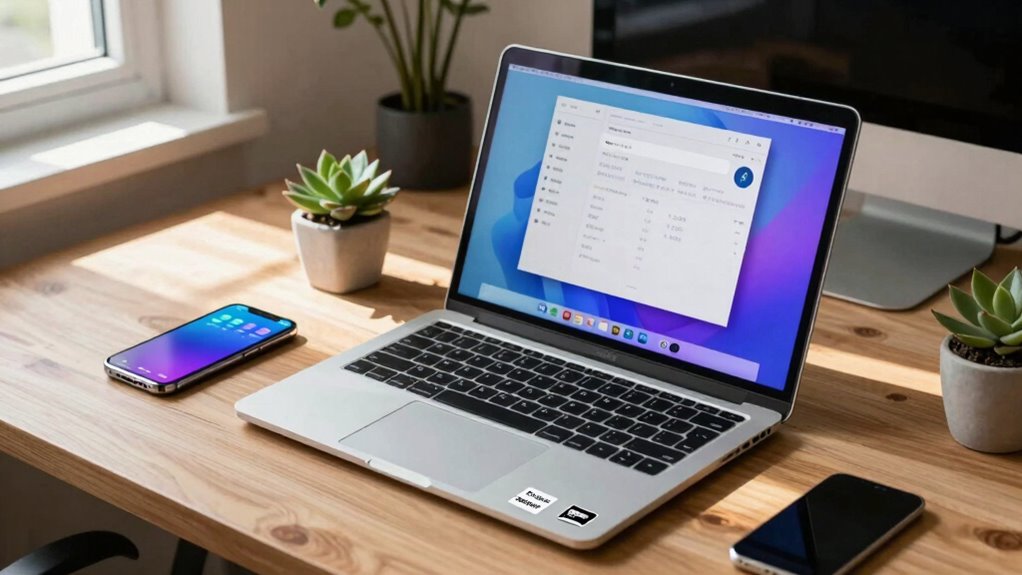
After ensuring your software is up to date and your files are backed up, it’s time to fine-tune your notifications and privacy settings. Start with notification management by disabling non-essential alerts, so you’re not distracted during your trip. Adjust privacy controls to limit data sharing and prevent apps from accessing unnecessary information. Review app permissions, turning off location tracking or camera access where not needed. This helps keep your personal information secure and reduces background activity that could drain your battery. Setting your notifications and privacy controls thoughtfully allows you to stay focused on your tasks and enjoy your travel without risking privacy breaches. Taking these steps ensures your laptop is secure and optimized for your journey. privacy controls are vital for maintaining data security during travel. Additionally, regularly reviewing your security settings helps prevent unauthorized access and potential threats. Implementing privacy best practices can further enhance your protection while on the move. Being aware of the Twin Flame vs Soul Tie distinctions can also help you better understand your personal relationships and protect your emotional well-being during your travels. Incorporating security awareness strategies is crucial for safeguarding your device and information in unfamiliar environments.
Frequently Asked Questions
How Do I Check if My Laptop’s BIOS Is up to Date?
To check if your laptop’s BIOS is up to date, start by restarting your computer and entering the BIOS setup, usually by pressing F2, F10, or Del during startup. Look for the BIOS version information, then visit your laptop manufacturer’s website to compare it with the latest firmware check. If an update is available, follow their instructions to perform a BIOS update, ensuring your firmware stays current and secure.
What Safety Precautions Should I Take When Connecting to Public Wi-Fi?
When connecting to public Wi-Fi, you should be aware of the risks like data theft or malware. Always use a VPN to encrypt your internet traffic, which shields your personal information from potential hackers. Avoid accessing sensitive accounts or conducting financial transactions on public networks. Additionally, disable sharing options and make sure your firewall is active. These precautions help protect your data and maintain your privacy in risky public Wi-Fi environments.
How Can I Optimize Battery Life for Long Travel Days?
To optimize your battery life for long travel days, activate power saving settings on your laptop. Reduce screen brightness, disable Wi-Fi and Bluetooth when not in use, and close unnecessary apps. Avoid deep discharges to maintain battery health, and unplug your device once fully charged. These steps help conserve energy, extend your laptop’s runtime, and keep your battery healthy over time, ensuring you stay connected throughout your journey.
What Should I Do if I Forget My Login Credentials?
If you forget your login credentials, don’t panic—you can easily recover your password through password recovery options provided by your OS or service. Use credential management tools to securely store and retrieve your passwords, making future access simpler. Always set up recovery options like backup email or security questions beforehand. This way, you stay prepared, avoid frustration, and ensure smooth access to your laptop during your travels.
How Do I Securely Wipe My Data Before Lending My Laptop?
To securely wipe your data before lending your laptop, start by backing up important files using reliable backup strategies. Then, enable data encryption to protect your information during the wipe. Use built-in reset options or specialized software to perform a factory reset, ensuring all personal data is completely removed. This process safeguards your privacy and prevents unauthorized access, giving you peace of mind when sharing your device.
Conclusion
Think of your laptop as a trusty ship setting sail. By adjusting your power, security, and network settings, you’re preparing it to navigate the digital seas smoothly and safely. Just like checking your ship’s supplies and maps before departure, these tweaks ensure you’re ready for any storm or calm waters ahead. With your laptop properly prepped, you can journey confidently, knowing you’ve set the course for a smooth, secure voyage wherever your travels take you.
Fall Picks
fall essentials
As an affiliate, we earn on qualifying purchases.