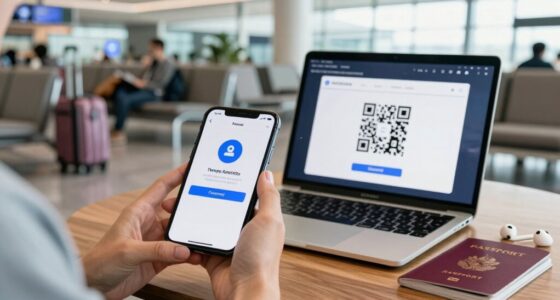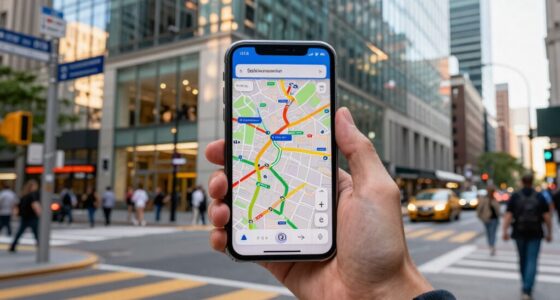

By taking screenshots of maps, addresses, tickets, and important details, you’re prepared for weak or unstable internet connections while traveling. This habit guarantees you have offline access to essential information, avoiding last-minute searches and reducing stress. It also keeps your data secure by avoiding unsecured Wi-Fi networks. With this simple trick, you stay organized and confident during your adventures. Keep exploring further, and you’ll discover even more ways to travel smarter and safer.

Get travel and outdoor gear delivered free with Prime
- Fast, free delivery on millions of items
- Prime Video, Amazon Music and more included
- Member-only deals all year
Key Takeaways
- Screenshot essential maps, addresses, and tickets for offline access during unreliable internet connections.
- Save navigation routes and transit information to avoid searching for Wi-Fi hotspots.
- Capture important travel details like opening hours and reservation info for quick reference offline.
- Store tickets and check-in details as images to prevent access issues caused by slow-loading pages.
- Use screenshots to securely keep critical travel documents, reducing dependence on unstable networks.
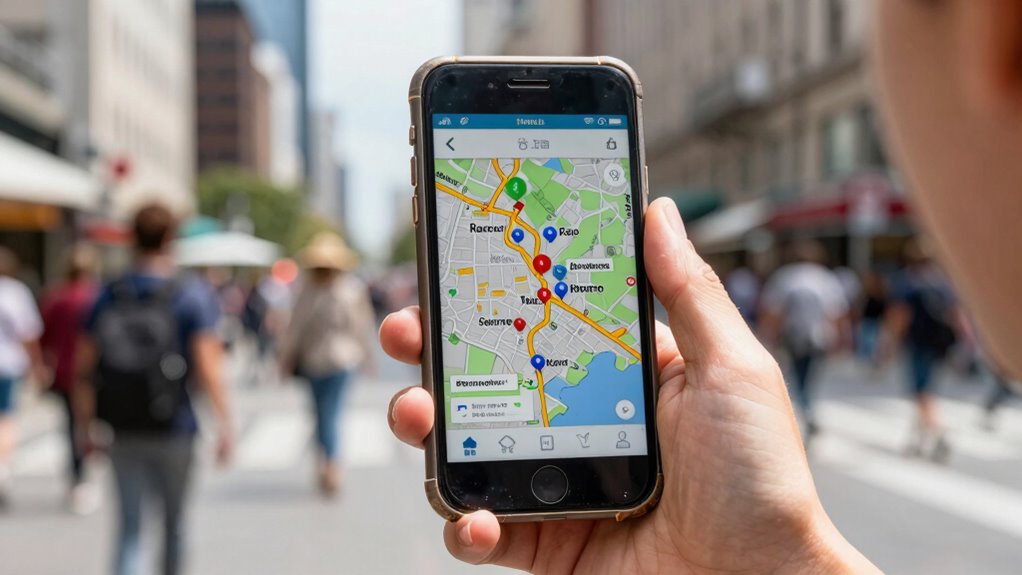
In today’s digital age, developing a screenshot habit can be a game-changer for travelers. When you’re exploring new places, relying solely on live internet connections can be frustrating, especially if Wi Fi security is inconsistent or unreliable. Instead of scrambling to find a signal or risking your data security, you can simply capture the essential information beforehand. Screenshots let you save maps, addresses, tickets, and important details so you’re prepared even when the internet drops out unexpectedly. This approach ensures you’re never left stranded, especially in areas with weak Wi Fi signals or no connection at all.
Capture important travel info with screenshots to stay prepared offline and protect your data security.
By taking screenshots of offline navigation routes, you eliminate the hassle of constantly reconnecting or searching for Wi Fi hotspots. Once you’ve captured a map or directions, you can access them anytime, anywhere, without worrying about security risks associated with public networks. This is particularly helpful when traveling in foreign countries, where Wi Fi security might be lax or when you’re in remote areas with limited coverage. Instead of risking exposure to potential cyber threats by using unsecured networks, you keep your information safe by having the necessary navigation details stored securely on your device. Understanding cybersecurity can help you better protect your personal information during travel.
A key advantage of this habit is that it minimizes your dependency on real-time data. Whenever you’re planning to visit a new landmark, restaurant, or hotel, take a quick screenshot of the location details, opening hours, or reservation confirmations. This way, even if your connection drops or Wi Fi security becomes a concern, you still have access to all the critical information. Offline navigation is especially useful when walking through unfamiliar neighborhoods or navigating large transit systems, where getting lost can quickly turn into a stressful experience. Your stored screenshots serve as a reliable guide, reducing anxiety and saving time. Additionally, practicing this habit can also help you manage your device storage more effectively by organizing essential travel information in one place.
Furthermore, capturing screenshots of important travel documents, such as tickets or reservations, streamlines your experience. You won’t need to worry about losing access to emails or struggling with slow loading pages when you’re trying to show proof of booking. Instead, you can confidently present your stored images on your device, ensuring a smooth check-in or entry process. This habit helps you stay organized and minimizes the risk of disruptions caused by weak internet or security issues.
In essence, adopting a screenshot habit equips you with a practical tool for navigating the digital challenges of travel. It enhances your offline navigation and keeps your data secure, providing peace of mind and convenience. With a few quick taps, you’re prepared for anything, making your journeys more seamless and stress-free regardless of Wi Fi security concerns or network reliability. Additionally, understanding the importance of secure connections can help you better protect your personal information during travel.
Products Worth Considering

Samsonite UpLIFT Expandable Softside Carry-On Spinner Luggage, Elemental Blue

Amazon Kindle Paperwhite (2024), 16 GB, 7-inch Display, Jade

Monos Modular Entertainment Center with Bookshelves and Drawers, Walnut
As an affiliate, we earn on qualifying purchases.
Frequently Asked Questions
How Do I Organize My Screenshots for Easy Access?
To organize your screenshots for easy access, create specific folders by category, such as travel, work, or personal. Use digital annotation tools to add notes or highlights for quick reference. Regularly back up your screenshots to the cloud, ensuring you don’t lose important images when needed. Keep your files tidy by deleting duplicates and outdated screenshots. This system helps you find what you need swiftly and keeps your digital space clutter-free.
Can Screenshots Be Encrypted for Privacy While Traveling?
Yes, you can encrypt screenshots to guard your privacy like locking a treasure chest. Use encryption methods such as password-protected files, secure cloud services, or apps with built-in encryption features. These tools act as digital guardians, shielding your sensitive info from prying eyes. Addressing privacy concerns while traveling, encryption guarantees your snapshots stay private, even in the chaos of unfamiliar environments, letting you keep your secrets safe and sound.
What Apps Are Best for Managing Travel Screenshots?
You should try apps like Evernote, Google Keep, or Notion to manage your travel screenshots. These apps let you organize, add photo annotations, and easily search through your images. Plus, they offer cloud backup, so your screenshots stay safe even if your device gets lost or damaged. With these tools, you can efficiently manage and access your travel photos anytime, anywhere, even without a strong internet connection.
How Do I Update Screenshots After Changing Information?
To update your screenshots after changing information, start with screenshot editing to add or modify details directly on the image. Save your edits, then upload the updated version to your cloud backup service. This way, you keep your screenshots current and accessible across devices. Regularly updating and backing up guarantees you always have the latest information, especially when traveling, even if your internet connection is weak.
Are There Any Risks of Using Screenshots Offline?
Using screenshots offline is generally safe, but be mindful of digital privacy; your images could contain sensitive info if accessed by others. Also, watch out for storage limitations on your device, which might cause issues if you save too many. Imagine your device as a cozy backpack—fill it carefully, keeping your privacy intact and ensuring there’s enough space for all your essential screenshots.
Conclusion
By adopting the screenshot habit, you become a resilient sailor steering unpredictable internet seas. When signals fade and connections falter, your saved images are like trusty lighthouses guiding you safely through the storm. Just as a sailor relies on landmarks to find their way, your screenshots illuminate essential information, preventing you from drifting into confusion. Embrace this habit, and you’ll always have a steady compass, steering your travel adventures clear of digital fog.