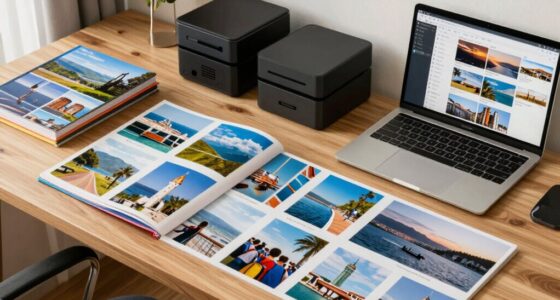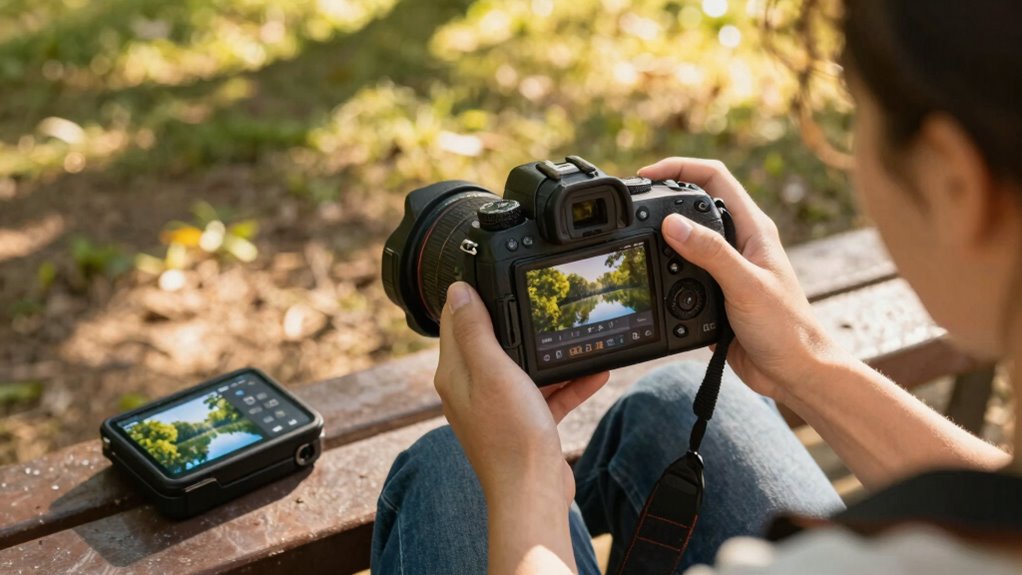

To quickly edit on the go without ruining your trip, start by organizing your photos immediately and use lightweight devices with good storage. Choose fast apps like Lightroom Mobile or Snapseed, and stick to simple adjustments like brightness, contrast, and cropping. Keep your workflow streamlined by setting export presets and cloud backups. Troubleshoot common issues quickly, and stay flexible with templates. Keep these tips handy, and you’ll master a 15-minute editing process that preserves spontaneity and quality.

Get travel and outdoor gear delivered free with Prime
- Fast, free delivery on millions of items
- Prime Video, Amazon Music and more included
- Member-only deals all year
Key Takeaways
- Organize and delete unusable shots immediately to streamline your editing workflow.
- Use mobile apps like Lightroom Mobile or Snapseed for quick, high-quality edits on the go.
- Keep device settings consistent and utilize presets to speed up editing and maintain a cohesive style.
- Export directly to cloud storage for instant backup and easy access across devices.
- Prepare templates and quick fix tools for common issues to enhance efficiency without compromising quality.
Products Worth Considering

GoPro Hero12 Black Waterproof Action Camera with 5.3K60 Video and 27MP Photos

DJI Osmo Mobile 8 Gimbal with Mic Mini Transmitter, Infinity Black
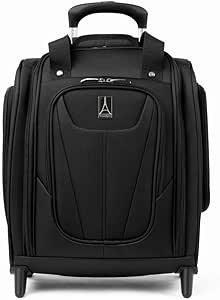
Travelpro Maxlite 5 Softside Underseat Carry-On, Black, 15-Inch
As an affiliate, we earn on qualifying purchases.
How to Prepare Your Photos for Quick Editing?
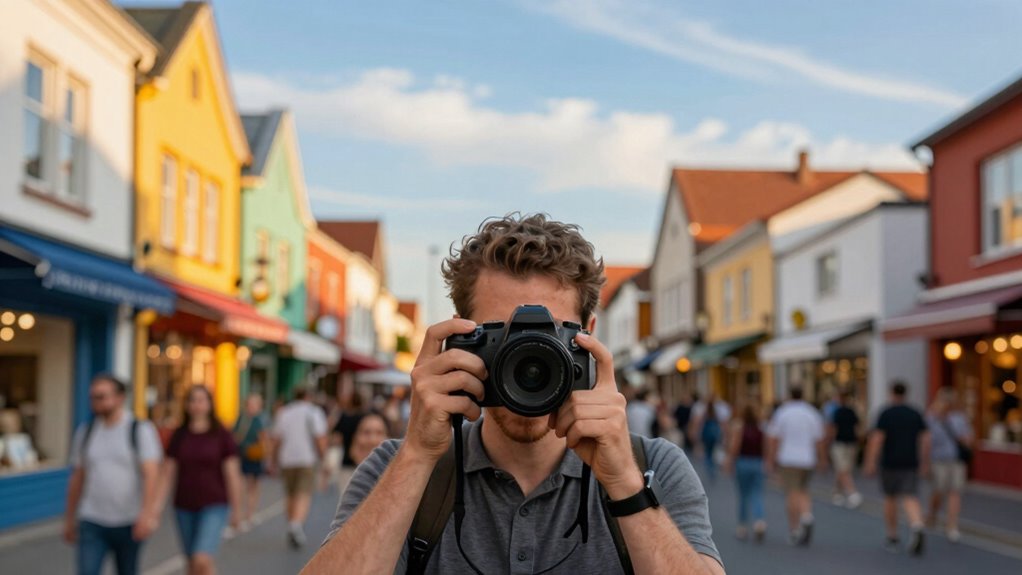
Have you ever wondered how to make your photos ready for quick editing? The key is proper photo preparation, which starts with good shot sequencing. Before snapping pictures, plan your shots to minimize the need for extensive edits later. Keep your camera settings consistent to ensure uniformity across shots, making batch adjustments easier. When taking photos, focus on capturing well-exposed, sharp images with clear composition. Organize your images into folders or albums right after shooting, so you don’t waste time searching during editing. Remove blurry or unusable shots immediately. Additionally, understanding color accuracy can help you anticipate how your images will look once edited, saving you time. Recognizing proper shot sequencing can significantly reduce post-processing efforts. By establishing a disciplined shot sequencing process and preparing your photos right after capture, you streamline your workflow, making quick edits smoother and more efficient during your trip. Incorporating a digital content exploration approach helps you adapt your editing techniques to different formats and research topics effectively. Moreover, familiarizing yourself with metadata management can further optimize your editing process by keeping your files organized and easily retrievable. Utilizing workflow automation tools can also speed up repetitive editing tasks, ensuring you stay efficient on the go.
Best Apps for Fast Mobile Photo Editing
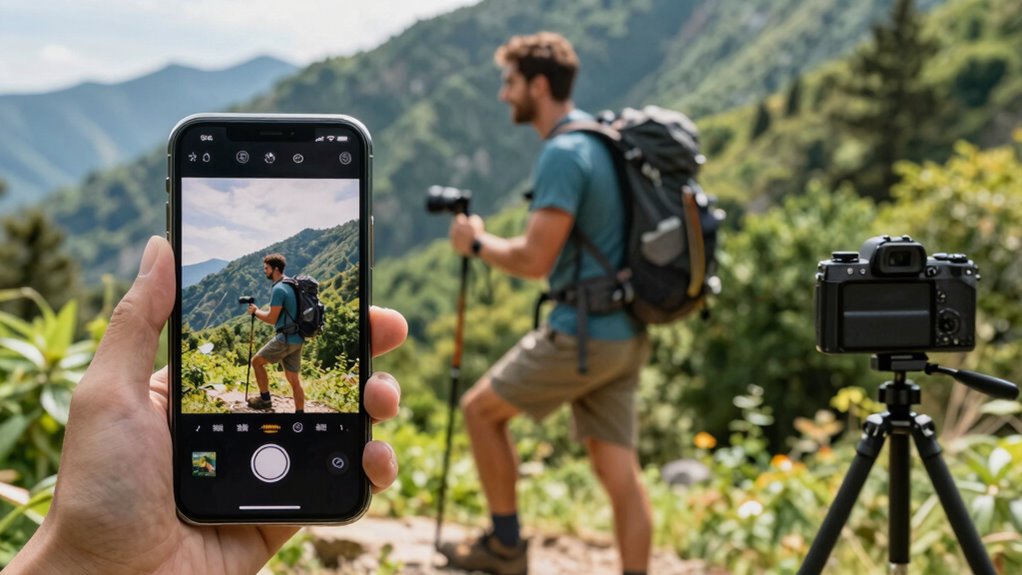
Looking for the fastest way to enhance your photos directly from your mobile device? Apps like VSCO, Snapseed, and Lightroom Mobile are perfect for quick edits. They offer intuitive interfaces and powerful tools that incorporate the latest photo filter trends, giving your images a modern, polished look in seconds. These apps also provide mobile editing shortcuts, allowing you to adjust brightness, contrast, and saturation with just a few taps. If you’re after trendy filters or unique effects, VSCO’s filter library is a game-changer. Snapseed’s precise editing tools and Lightroom’s all-encompassing controls help you fine-tune your photos without overcomplicating the process. Additionally, understanding indoor air quality can help you create a more comfortable environment for your travels. Using user-friendly editing apps can significantly streamline your workflow, saving you time and effort. Incorporating photo editing workflows can make your editing process even more efficient. These apps keep editing simple, fast, and effective—ideal for snapping, editing, and sharing on the go without ruining your trip. Furthermore, opting for apps that prioritize privacy and security ensures that your images and data remain protected while editing on mobile devices. Embracing cloud storage solutions can also help back up your work seamlessly and access edits across devices.
Choosing the Right Tools for Your Travel Workflow
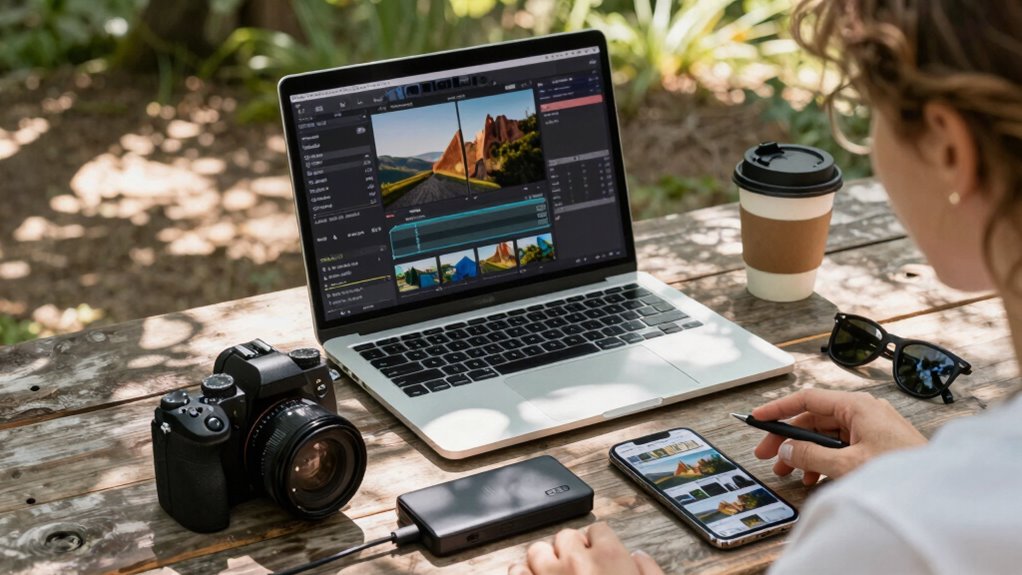
To create an efficient travel editing setup, you need tools that work seamlessly with your devices. Consider essential apps that fit your style and workflow, and think about how cloud storage can keep your files accessible everywhere. Choosing the right combination of hardware and software guarantees you stay productive wherever your trip takes you. Incorporating herbal wellness practices into your routine can also help you stay relaxed and focused during busy travel days.
Compatible Devices Needed
Choosing the right devices for your travel editing setup is essential to stay productive on the go. You need hardware that’s compatible with your editing needs and portable enough for quick adjustments. Look for devices with good processing power, sufficient RAM, and reliable storage. Compatibility of your editing hardware with your workflow ensures seamless performance. For example, a lightweight laptop or tablet with a high-resolution screen can simplify quick edits. Here’s a quick overview:
| Device Type | Key Features | Ideal Use |
|---|---|---|
| Ultrabook Laptop | Fast processor, light, durable | Full editing on the move |
| Tablet | Touchscreen, portable, compatible | Quick adjustments, previews |
| External Drive | Fast transfer, compact | Extra storage, backups |
| Smartphone | Good camera, editing apps installed | On-the-fly edits |
| Portable Monitor | Larger display, lightweight | Detailed review, editing |
Additionally, choosing devices with color accuracy ensures your edits remain true to the original footage or images, which is crucial for professional work. Investing in high-quality displays can significantly improve your editing precision and overall workflow efficiency.
Essential Editing Apps
Ever wonder which editing apps can keep up with your travel workflow? The right tools make quick edits seamless. Look for apps that offer editing shortcuts to speed up common tasks like trimming, cropping, and applying filters. These shortcuts save time and keep your workflow efficient. For color correction, choose apps with intuitive controls that allow you to enhance or correct colors quickly, ensuring your footage looks professional without lengthy adjustments. Popular options like Adobe Premiere Rush, LumaFusion, and InShot provide a balance of powerful features and ease of use. Focus on apps that let you perform essential edits swiftly, so you can process your footage on the go without sacrificing quality or wasting precious travel time.
Cloud Storage Options
Selecting the right cloud storage options can streamline your travel editing workflow by guaranteeing your footage is accessible and safe across devices. Focus on tools that prioritize cloud syncing and storage security. Consider these options:
- Choose providers with end-to-end encryption to protect your footage.
- Opt for services offering automatic cloud syncing for real-time updates.
- Ensure ample storage capacity to handle your video files without hassle.
- Look for platforms with multi-device access, so you can edit seamlessly on any device.
- Evaluate the platform’s security features to ensure your footage remains private and protected during your travels.
How to Edit Your Photos in Just 15 Minutes
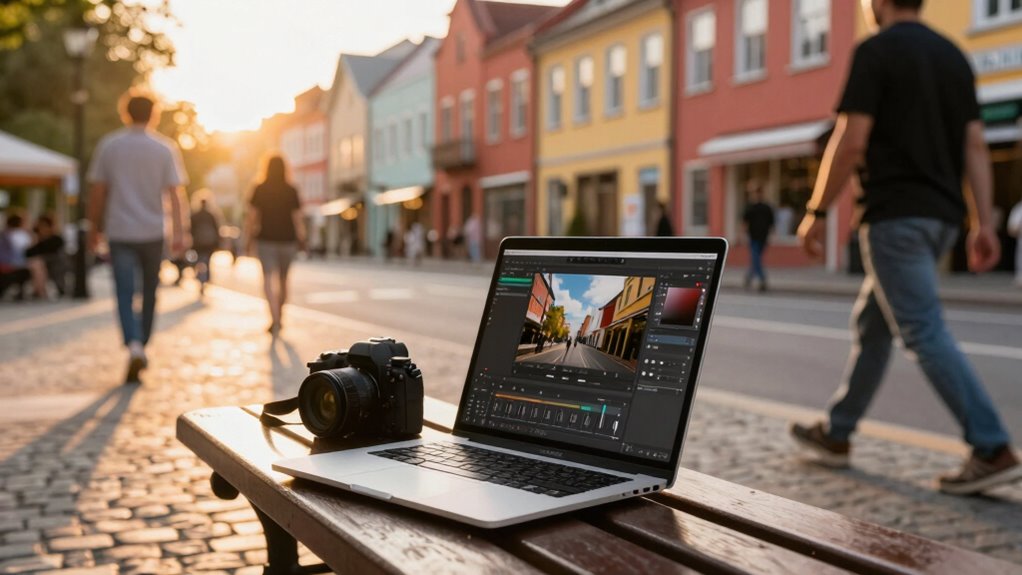
Even with a busy schedule, you can transform your photos in just 15 minutes by focusing on quick, targeted edits. Start with applying photo filters to instantly set the mood or style. Next, perform basic color correction to enhance brightness, contrast, and saturation. Keep your adjustments minimal to save time, aiming for natural results. Use this simple table as a guide:
| Step | Action |
|---|---|
| 1 | Apply a relevant photo filter |
| 2 | Adjust brightness and contrast |
| 3 | Fine-tune color saturation |
| 4 | Crop or straighten if needed |
| 5 | Save and review your edit |
This approach keeps your workflow efficient, ensuring your photos look polished without taking up your entire day. Additionally, understanding editing techniques can help you make smarter choices in less time. Being familiar with photo editing tools can also speed up your process and improve your results. For those interested in investing, exploring reputable Gold IRA markets can provide valuable opportunities for diversification and long-term growth.
Quick Tips to Boost Colors and Brightness

To make your photos pop, boosting colors and brightness quickly can make a big difference. Start with simple adjustments for effective color correction and brightness enhancement. Here are four quick tips:
- Use the auto-enhance feature to instantly improve overall color and brightness.
- Adjust the contrast slider to make colors stand out more vividly.
- Increase the vibrance or saturation slightly to enrich dull colors.
- Fine-tune brightness levels to ensure your image isn’t too dark or washed out.
These steps help you achieve lively, eye-catching photos without spending too much time. Keep in mind, subtle tweaks often produce the best results in color correction and brightness enhancement, ensuring your images look natural and vibrant.
Fast Ways to Fix Common Photo Flaws
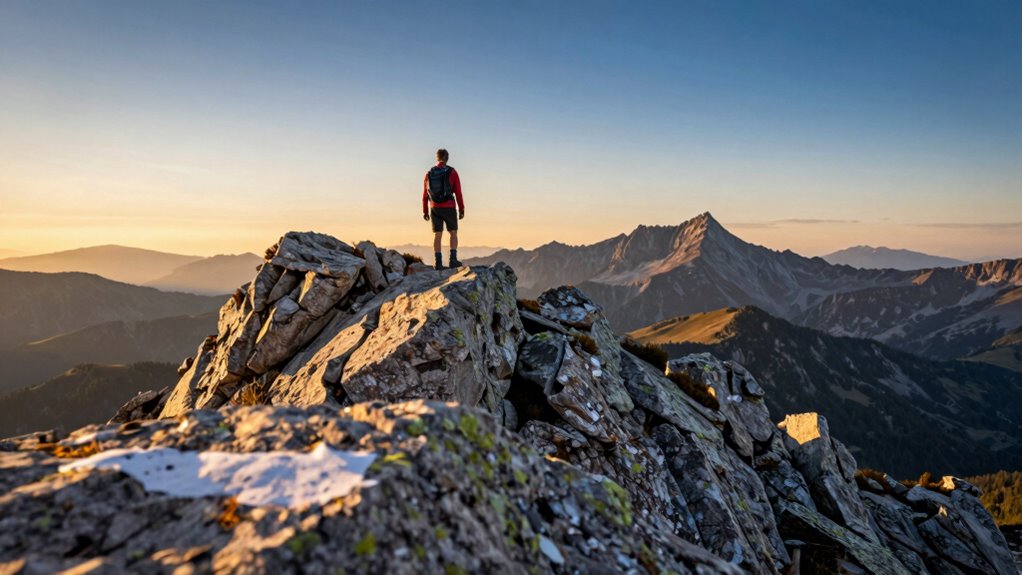
When you encounter common photo flaws like red-eye, blemishes, or distracting objects, quick fixes can save your shot. Use editing tools for fast photo restoration, removing blemishes with spot healing brushes or clone stamps. For red-eye, a simple red-eye reduction feature works instantly. If objects distract from the main subject, cropping or masking can quickly eliminate them. Lens correction is also essential—fix distorted edges or skewed lines caused by wide-angle lenses. Many editing apps offer auto lens correction options that are fast and effective. Additionally, understanding the importance of photo composition can help you avoid some issues altogether by framing your shots carefully from the start. Being familiar with editing workflows can streamline your process and save even more time. These quick fixes help you improve your photos without extensive effort, ensuring your shots look polished even when you’re short on time. With these simple techniques, you can handle common flaws on the go and keep your trip memories pristine.
Saving and Exporting Your Edited Photos Efficiently
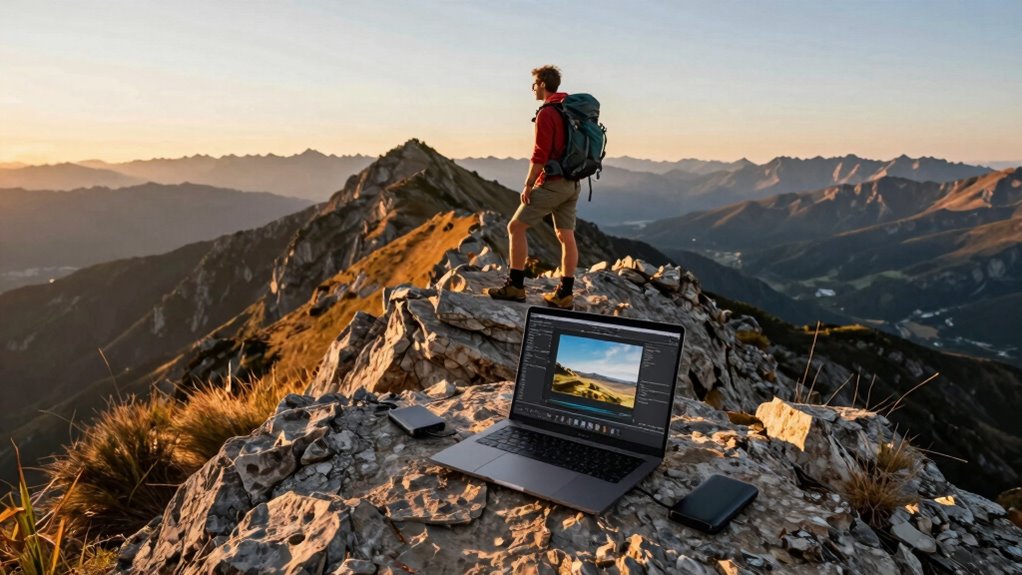
To save and export your edited photos efficiently, you need to choose the right export settings that balance quality and file size. Organizing your saved files helps you find and share them quickly later on. By setting up your workflow for fast sharing, you can send your photos to clients or social media without extra hassle. Additionally, selecting the appropriate file format and resolution ensures your images are optimized for their intended use.
Choosing Export Settings
Have you ever struggled to find the right export settings for your photos? Choosing the correct export options guarantees your images look great and are easy to share. Focus on these key points:
- Image resolution: Decide whether to keep the original resolution for print or lower it for faster web uploads.
- File format: Select formats like JPEG for sharing and PNG for transparency needs.
- Compression: Balance quality and file size; higher compression reduces size but may degrade image quality.
- Color profile: Use sRGB for web use and Adobe RGB for printing to ensure accurate colors. Additionally, understanding the role of AI in cybersecurity can help protect your images from digital threats during storage and sharing.
Organizing Saved Files
Organizing your saved files is essential for maintaining an efficient workflow and quickly locating your photos later. Good file organization starts with clear folder management, so create folders based on dates, locations, or projects. When saving your edited photos, use descriptive filenames that include key details, making them easy to identify. Consistently naming and sorting files helps you avoid clutter and saves time searching for specific images later. Consider establishing a standard system for your folder structure and naming conventions, guaranteeing everything remains orderly even after multiple edits. This approach not only streamlines your workflow but also ensures that your photos are safely stored and easy to access when you need them, keeping your editing process smooth and efficient on the go. Incorporating proper file handling techniques can further protect your work from loss or corruption.
Sharing Quickly and Easily
Are you looking for ways to share your edited photos quickly without sacrificing quality? Streamlining photo sharing and using editing shortcuts can save you time. To do this efficiently:
- Use export presets tailored for social media to save time on formatting.
- Save your edits as a copy to preserve the original without extra steps.
- Export directly to cloud storage for instant access on other devices.
- Leverage sharing options within editing apps for quick photo sharing without extra uploads.
These tips help you avoid unnecessary steps, ensuring your photos are ready to share in mere moments. By mastering these editing shortcuts and export techniques, you’ll keep your workflow smooth and your trip stress-free. Quick sharing means more photos, less hassle.
Troubleshooting: What to Do When Edits Don’t Look Right?
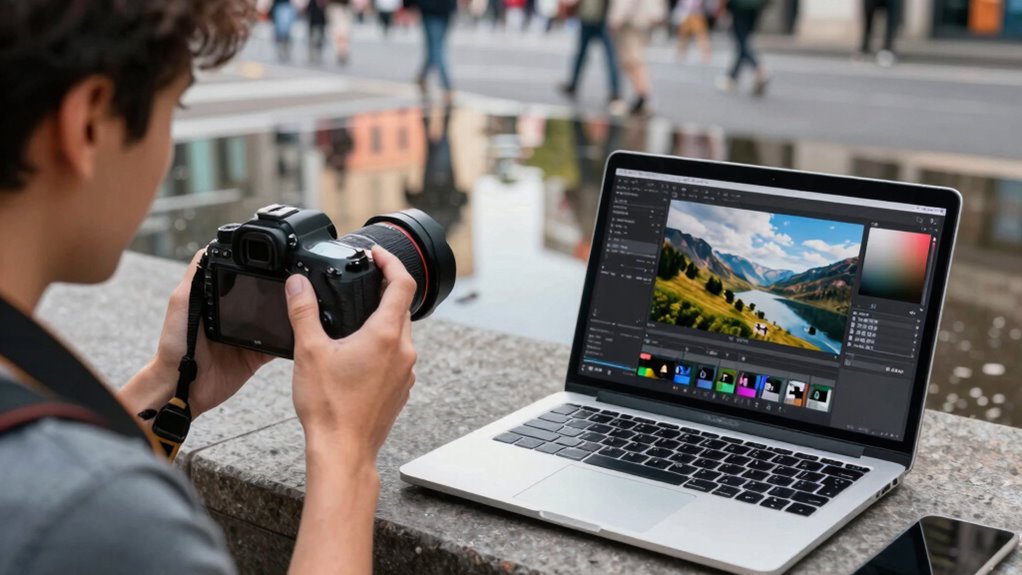
When your edits don’t look right, the first step is to identify the specific issue. Is it a photo editing pitfall, like over-saturation or unnatural colors? Or could troubleshooting software glitches be causing the problem? Use this quick checklist:
| Issue Type | Solution |
|---|---|
| Photo editing pitfalls | Undo recent changes, reset adjustments, try different filters |
| Software glitches | Restart the app, update software, clear cache |
| Display issues | Check screen calibration or export settings |
| Compatibility problems | Use recommended formats, avoid unsupported plugins |
Being aware of cryptid mysteries and other paranormal phenomena can sometimes influence how we interpret visual anomalies or unusual glitches in our editing process.
Staying Spontaneous and Consistent With Your Travel Edits
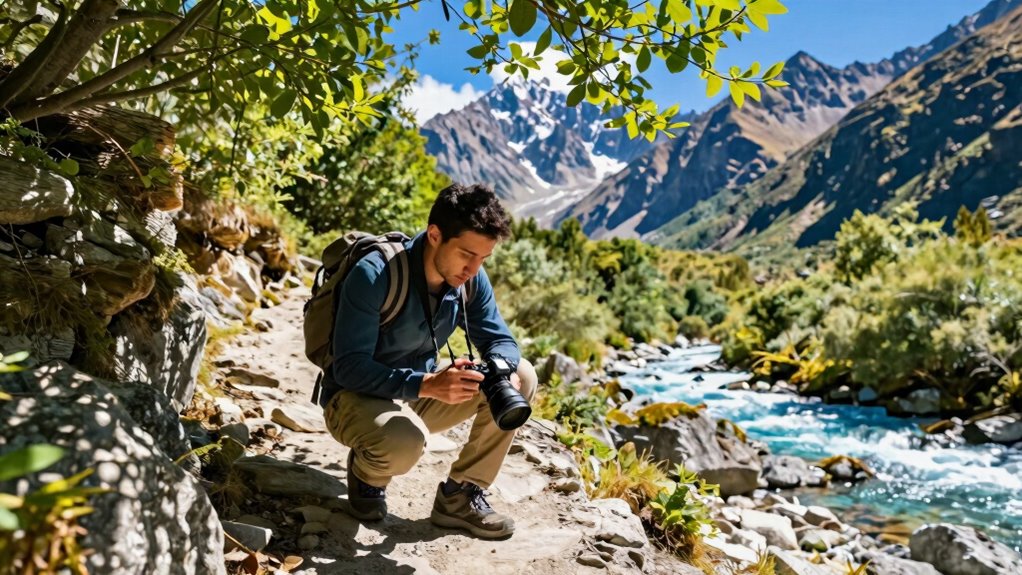
To keep your travel edits both spontaneous and consistent, embrace a flexible workflow that allows for creative experimentation without losing your overall style. This approach helps you adapt quickly, even with limited travel gear or language barriers. Here’s how:
Maintain a flexible editing workflow to stay creative and consistent while traveling.
- Use a core editing style as a baseline, so your edits remain recognizable.
- Save quick adjustment templates for common situations to speed up the process.
- Keep a small, portable toolkit—like a smartphone app or compact laptop—ready for spontaneous edits.
- Stay open to experimenting, but review your edits briefly to ensure they match your intended style.
- Incorporate color matching techniques to maintain a cohesive look across your outfits, even when adapting on the fly.
Frequently Asked Questions
What Are the Best Storage Options for Travel Photos?
You should use cloud storage like Google Drive or Dropbox for easy access and automatic backups while traveling. External drives are also great for offline backups, offering reliable, high-capacity options. Combining both guarantees your photos are safe, accessible, and protected from device failure or loss. Keep an organized folder system on your external drive, and upload regularly to cloud storage for peace of mind during your trip.
How Can I Back up Edited Images Quickly?
Quickly back up your images by leveraging lightning-fast cloud backup and automatic syncing. Simply set your device to automatically sync your edited images as soon as you connect to Wi-Fi, ensuring your shots are safely stored without delay. This seamless system saves time, secures your work, and keeps your trip trouble-free. With this simple setup, you can focus on capturing memories, not worrying about losing your precious photos.
Are There Offline Editing Options for Remote Locations?
Yes, you can use offline editing tools like Adobe Lightroom or Capture One, which don’t require internet access. Before heading to remote locations, sync your images with cloud-based storage like Dropbox or Google Drive. This way, you can access and edit your photos offline. Once you reconnect, your edits automatically sync back to the cloud, ensuring your work stays backed up and accessible without relying solely on an internet connection.
How Do I Maintain Color Consistency Across Multiple Edits?
Think of your edits as a symphony, where every instrument needs harmony. To maintain color consistency, focus on precise color grading and use color matching tools, like eyedropper tools or presets, to guarantee uniform tones across all clips. Regularly compare your shots side by side to spot discrepancies, adjusting as needed. This approach keeps your project cohesive, so your visual story flows seamlessly, like a perfectly tuned orchestra.
What Privacy Considerations Should I Keep in Mind?
You should prioritize cloud privacy by choosing secure services with strong encryption and regular security updates. Also, guarantee your device uses encryption to protect your data locally. Be cautious when sharing files or links, and avoid public Wi-Fi networks for sensitive edits. Regularly update passwords, enable two-factor authentication, and review privacy settings. These steps help safeguard your work and personal info, maintaining your privacy during quick edits on the go.
Conclusion
With just 15 minutes, you can transform your travel photos into stunning memories. Did you know that travelers who edit their photos on the go report 30% higher satisfaction with their visual stories? Stick to a quick workflow, use the right apps, and keep your edits simple. This way, you’ll capture spontaneous moments without ruining your trip’s vibe. So, stay creative, stay efficient, and let your photos tell the story of your adventures effortlessly.