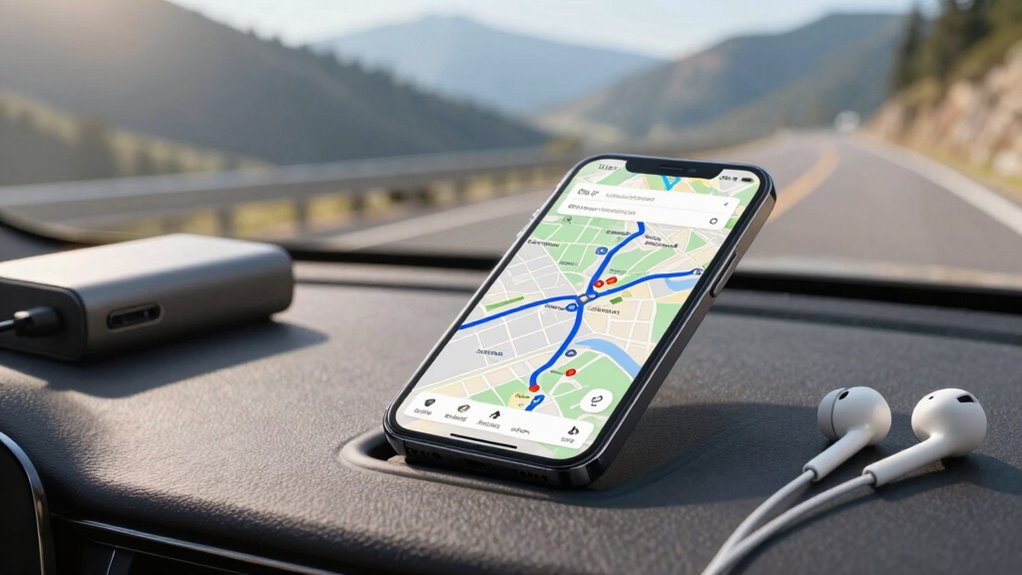

To keep your phone battery alive on navigation days, activate battery-saving mode, lower your screen brightness, and reduce screen timeout. Close unneeded apps, disable background activity, and download offline maps to prevent data drain. Enable power-saving features in your navigation apps and limit location settings to conserve energy. Keep your device cool, avoid direct sunlight, and carry a portable charger for quick top-ups. Want to learn more tips? Keep exploring.

Get travel and outdoor gear delivered free with Prime
- Fast, free delivery on millions of items
- Prime Video, Amazon Music and more included
- Member-only deals all year
Key Takeaways
- Enable battery-saving mode and reduce screen brightness to minimize power consumption during navigation.
- Download offline maps and disable unnecessary apps and notifications to prevent background drain.
- Use low-power location settings and limit background location sharing in navigation apps.
- Turn on adaptive brightness, switch to dark mode, and avoid overheating to preserve battery health.
- Carry a portable charger and take breaks to keep your device cool and ensure continuous power.
As an affiliate, we earn on qualifying purchases.
Enable Power-Saving Mode and Adjust Screen Brightness to Conserve Battery
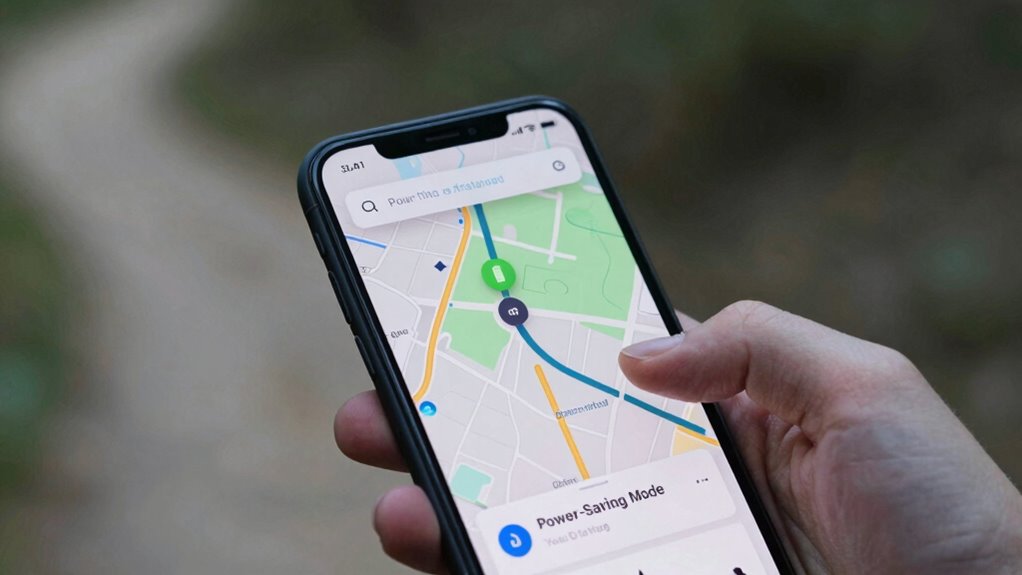
To extend your phone’s battery life, start by enabling power-saving mode. This feature helps with battery optimization by limiting background activity and reducing system performance. It’s a quick way to conserve energy when your battery runs low or you’re on a long trip. Next, adjust your display settings, as the screen consumes the most power. Lower your screen brightness manually or enable auto-brightness so it adapts to your environment. Reducing screen timeout duration also helps save energy. These simple tweaks make a significant difference, especially during navigation days when your screen stays active frequently. Additionally, consider using battery-saving accessories like power banks or car chargers to keep your device charged on the go. Managing display settings such as brightness and timeout time is crucial for battery longevity. Being mindful of power management options can further optimize your device’s energy use and extend its uptime during critical moments. Employing background activity controls can prevent unnecessary apps from draining your battery without your knowledge. Monitoring filter indicators and cleaning your device regularly can also help maintain optimal performance and energy efficiency. By managing power-saving options and display settings, you maximize your phone’s battery life without sacrificing essential functionality.
As an affiliate, we earn on qualifying purchases.
Close Unneeded Apps and Turn Off Background Processes
Since many apps continue running in the background and consuming resources even when you’re not using them, stopping unneeded apps and turning off background processes is vital. Effective app management reduces background activity, saving battery life during navigation days. Close apps you’re not actively using to prevent unnecessary drain. Additionally, disable background activity for apps that don’t need real-time updates. This prevents unnecessary resource consumption and extends your battery life. Being aware of background processes can further optimize your device’s performance and battery longevity, especially when managing multiple running applications during long navigation days. Regularly reviewing app permissions and updates can also help control background activity, ensuring your device runs efficiently. Here’s a quick guide:
| App Type | Action |
|---|---|
| Social Media Apps | Close or disable background activity |
| Navigation Apps | Keep active only during use |
| Messaging Apps | Turn off background refresh |
| Streaming Apps | Close when not in use |
| Utility Apps | Disable background activity |
As an affiliate, we earn on qualifying purchases.
Use Offline Maps and Download Navigation Data Before Your Trip
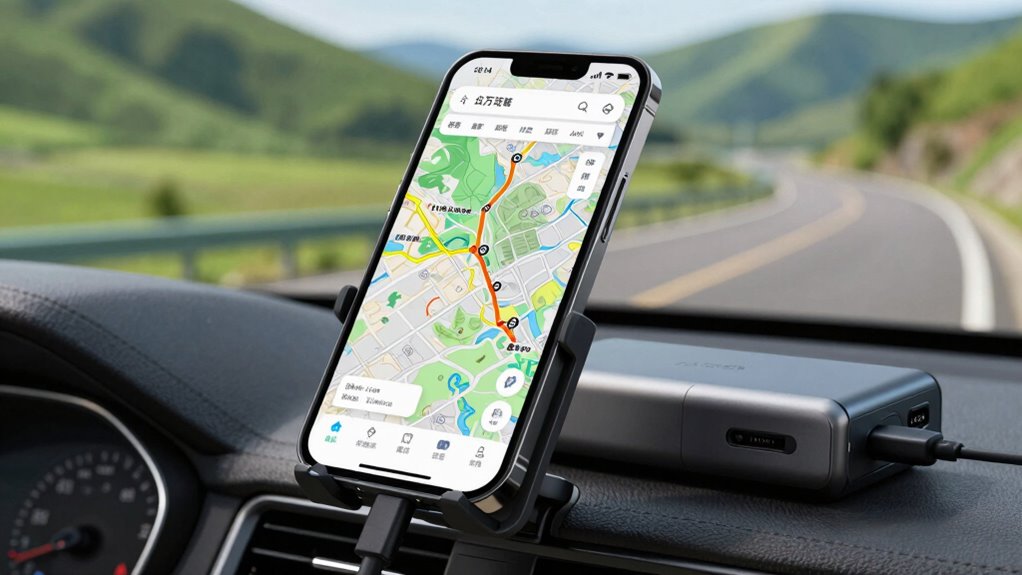
Planning ahead by downloading offline maps and navigation data guarantees your phone doesn’t drain its battery searching for signals or loading maps during your trip. By pre download navigation, you ensure that all necessary map information is stored directly on your device. This reduces the need for constant data connections, which can quickly deplete your battery. Offline maps are especially useful in areas with poor or no signal, allowing you to navigate smoothly without interruptions. Before your trip, take a few minutes to download the specific maps you’ll need. This simple step makes a significant difference, conserving battery life and ensuring your device remains functional throughout your journey. Incorporating crisping techniques from air fryer cooking can serve as a helpful analogy for optimizing your device’s performance and efficiency. Using offline maps and pre download navigation keeps your trip stress-free and your phone powered longer. Additionally, regularly closing unused apps and disabling unnecessary notifications can further extend your battery life during navigation days. Being mindful of power management practices can further enhance your device’s longevity on busy days.
As an affiliate, we earn on qualifying purchases.
Turn On Battery-Saving Features in Your Navigation Apps
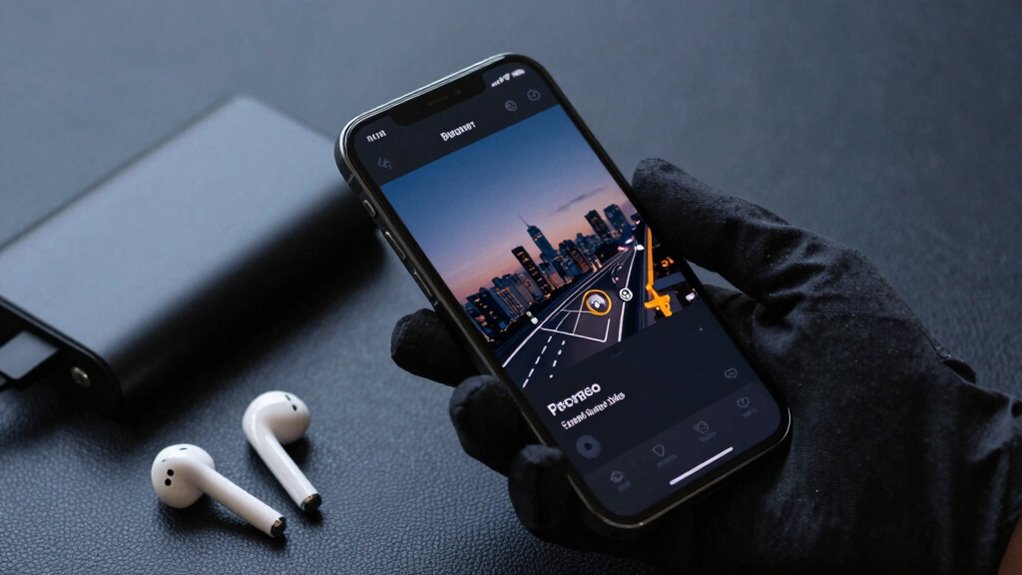
Turning on battery-saving features in your navigation apps can make a big difference. You should enable power mode and adjust your location settings to reduce energy drain. These small changes help extend your phone’s battery life during long trips. Additionally, consider incorporating cultural accents like Indonesian decor masks or Balinese accents into your travel gear to bring cultural vibrancy and a sense of serenity to your journey. Using battery optimization features can further enhance energy efficiency and prolong your device’s usability on navigation days. Being mindful of energy consumption settings can also contribute significantly to preserving your battery life during extended use. Recognizing the importance of power management settings can help you make smarter choices about when and how to conserve energy on your device.
Enable Power Mode
Have you considered enabling power-saving modes within your navigation apps? Turning on these features can greatly improve your phone’s battery optimization and help extend usage during long navigation days. Many apps include built-in power management options that reduce background activity, lower screen brightness, or limit updates to essential functions only. By activating these modes, you prevent unnecessary drain without sacrificing essential directions. This straightforward step ensures your device conserves energy, allowing you to rely on your navigation app longer without worries. Keep in mind, enabling power mode is a simple yet effective way to maximize your phone’s battery life during demanding days on the go. Take a moment to explore your app’s settings and activate these features for ideal power management.
Adjust Location Settings
Adjusting your location settings can substantially boost your phone’s battery life while using navigation apps. Reduce unnecessary battery drain by selecting the most efficient location accuracy option, such as “Battery Saving” mode, which uses less power than high-accuracy modes. This might slightly decrease pinpoint precision but still provides reliable directions. This is especially important when choosing battery inverter generator capacity, as conserving device power can help you avoid running out of charge during extended navigation days. Be mindful of your privacy permissions; only grant location access when needed, and consider disabling background location sharing if it isn’t essential. Turning off high-precision settings and limiting location updates helps conserve power without sacrificing navigation quality. Regularly reviewing your privacy permissions also prevents apps from accessing your location unnecessarily, further extending your battery life during navigation days. Trusted businesses and services near you can often provide helpful tips on optimizing device settings for better performance. To make the most of your battery life, consider adjusting app permissions to prevent unnecessary background activity that drains power. Additionally, understanding location accuracy options can help you select the most battery-efficient setting for your needs. Being aware of power-saving features on your device can also contribute significantly to extending your navigation days.
Limit Screen Brightness and Minimize Distractions While Navigating
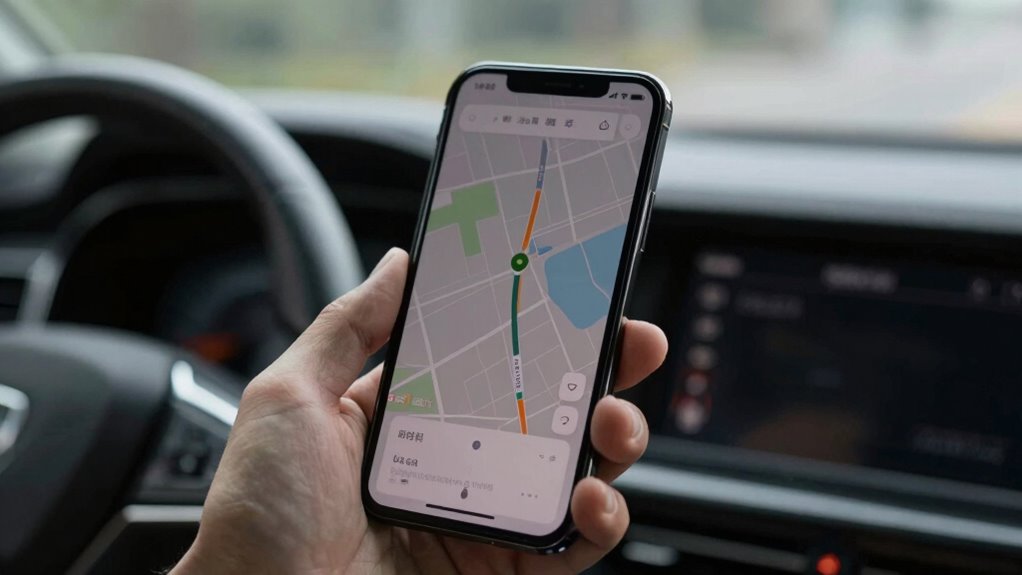
Reducing your screen brightness can considerably extend your phone’s battery life while steering. Turning off non-essential apps and notifications prevents unnecessary drain and distractions. Switching to dark mode further conserves energy, especially on OLED screens. Additionally, enabling power-saving modes can optimize your device’s performance and prolong battery life during navigation.
Adjust Screen Brightness
Did you know that lowering your screen brightness can substantially extend your phone’s battery life? By adjusting your brightness control, you optimize your device’s power consumption. Use screen customization features to set your brightness to a lower, comfortable level, especially when steering for long periods. Bright screens drain your battery faster, so keeping it dim minimizes energy use without sacrificing visibility. Many phones also have adaptive brightness, which automatically adjusts based on ambient light, further conserving power. Remember, the less your screen consumes energy, the longer your navigation will last. Mastering Time Zones is an example of a feature that can help you plan efficiently during extended trips. It’s a simple but effective step to keep your phone alive during extended trips. Regularly adjusting your brightness is an easy way to maximize your device’s battery life while staying focused on the road. Additionally, understanding battery management techniques can further enhance your device’s longevity during long navigation days.
Furthermore, enabling power-saving mode can automatically adjust various settings to extend your battery life throughout the day.
Disable Non-Essential Apps
Ever wondered how to make your phone’s battery last longer while steering? Disabling non-essential apps is key. These background apps drain power without you realizing, affecting app optimization and battery health. Before hitting the road, close any apps you won’t need during navigation. Turn off notifications for non-essential apps to avoid distractions and unnecessary wake-ups. This reduces CPU activity and conserves energy. Also, disable location services for apps that don’t require real-time updates. By limiting background processes and minimizing app activity, you maximize your phone’s efficiency and prolong battery life. Keeping only essential apps active ensures your device uses power more effectively, making sure your navigation session lasts longer without unexpected shutdowns. This simple step greatly enhances your phone’s overall battery performance during long drives.
Use Dark Mode
Using Dark Mode on your phone can substantially extend your battery life during navigation. When you enable dark mode, it reduces the amount of power your screen consumes, especially on OLED displays where black pixels turn off completely. This is a key aspect of screen optimization, helping your device last longer without sacrificing visibility. Additionally, dark mode minimizes glare and distractions, making it easier to focus on navigation prompts. To maximize battery savings, also lower your screen brightness and avoid unnecessary notifications that can wake your screen. By consciously choosing dark mode and optimizing your display settings, you reduce energy drain and keep your phone powered longer during navigation-heavy days.
Keep Your Phone Cool to Prevent Overheating During Use
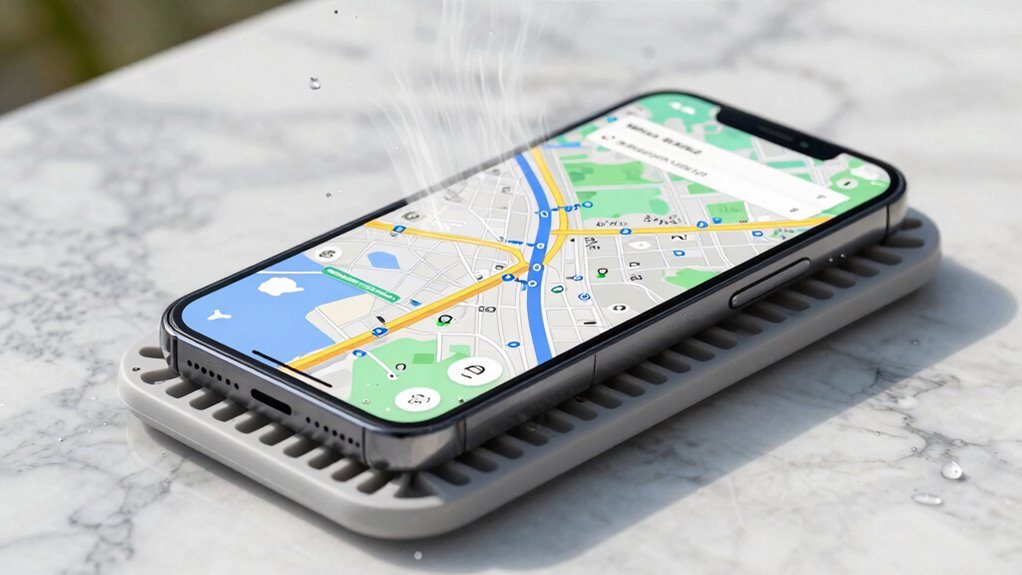
Keeping your phone cool while using it is essential to prevent overheating, which can drain your battery faster and damage internal components. To achieve effective phone cooling, avoid exposing your device to direct sunlight or high temperatures. Use ventilation techniques like removing phone cases that trap heat and ensuring proper airflow around your device. Take regular breaks during intensive navigation sessions to let your phone cool down. Keep the screen brightness at a moderate level to reduce heat generation. Additionally, close unnecessary apps that may cause the device to work harder, generating more heat. Staying mindful of your phone’s temperature helps preserve battery life and prevents overheating-related issues. Proper ventilation techniques and mindful usage keep your device operating efficiently on busy navigation days.
Carry a Portable Charger to Keep Your Phone Powered on the Go
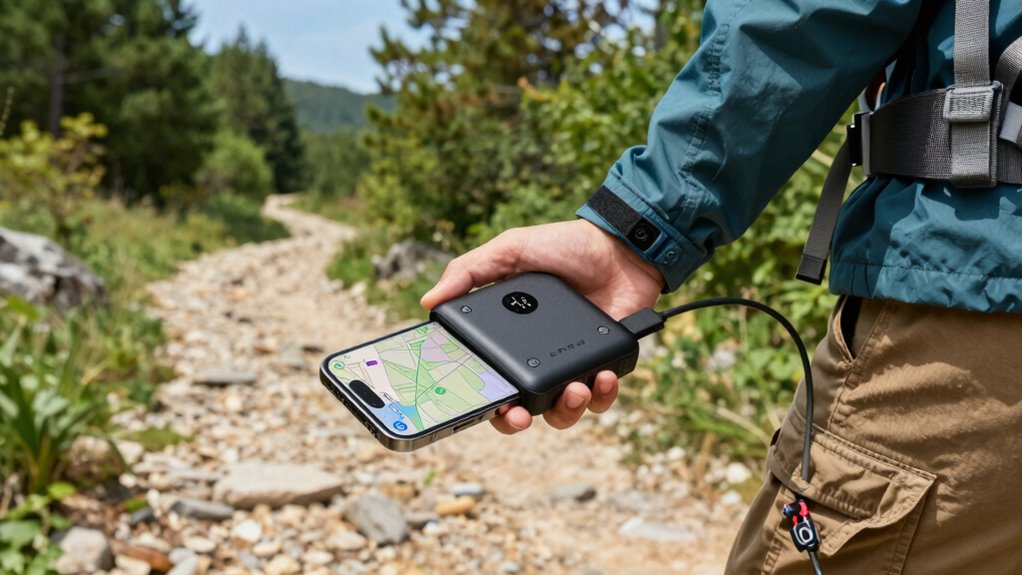
When you’re out and about, your phone’s battery can drain quickly, especially during long trips or busy days. Carrying a portable charger ensures you stay connected without panic. A portable charger acts as a backup power source, letting you recharge on the go and extend your device’s battery life. To maximize its usefulness, choose a compact, high-capacity model. Remember, conserving battery means you won’t have to rely solely on it.
- Keep your portable charger charged overnight
- Use it only when necessary to save power
- Avoid overusing your phone to conserve battery
- Turn off unnecessary notifications
- Opt for power-saving modes when possible
Frequently Asked Questions
How Long Does Enabling Power-Saving Mode Typically Extend Battery Life?
Enabling power-saving mode can typically extend your phone’s battery life by about 20-50%, depending on usage. This feature reduces background activity, limits screen brightness, and disables non-essential functions, which considerably boosts battery longevity. When you activate power-saving features, your device conserves energy, making your battery last longer during navigation days. Keep in mind that the exact extension varies, but it’s a practical way to maximize your phone’s battery life when you need it most.
Are There Specific Apps That Drain Battery Faster During Navigation?
Certain apps drain your battery faster during navigation, especially those with high app background activity and constant GPS signal use. Streaming music, social media, and weather apps often stay active in the background, consuming more power. To conserve battery, limit background activity for non-essential apps and guarantee your GPS signal is strong, as weak signals force your phone to work harder, draining power more quickly.
Can Turning off Wi-Fi and Bluetooth Improve Navigation Battery Life?
Imagine your phone as a traveler on a long journey, conserving energy for the road ahead. Turning off Wi-Fi toggling and managing Bluetooth help cut down background activity, freeing up precious battery life during navigation. When you disable these features, your device focuses solely on GPS, making your navigation more efficient. This simple act ensures your phone stays alive longer, guiding you smoothly without the worry of sudden power loss.
What Is the Optimal Screen Brightness Level for Conserving Battery?
You should set your screen brightness to a low level that’s comfortable for you, ideally around 20-30%. Enable automatic adjustment so your phone dims the screen in low-light conditions, saving battery. Avoid max brightness unless necessary, as it drains power quickly. By balancing a lower manual brightness with automatic adjustment, you optimize battery life during navigation, ensuring your device lasts longer on your trip.
How Often Should I Calibrate My Phone’s Battery for Best Performance?
You should calibrate your phone’s battery every 3 to 6 months to guarantee peak performance. This process helps maintain excellent battery health and prevents mysterious drain issues. Think of calibration as giving your phone a health check-up—it keeps the battery’s accuracy in check. Regular calibration resets the battery’s understanding of its capacity, ensuring you get reliable usage and longer-lasting power, especially on navigation days when you need your phone most.
Conclusion
Remember, a stitch in time saves nine—so take these simple steps to extend your phone’s battery life on wayfinding days. By managing settings, closing apps, and carrying a portable charger, you’ll stay connected when it matters most. Don’t wait until your battery dies; prep now and keep your device running smoothly. After all, a well-prepared traveler is a happy traveler. Happy wayfinding!
Halloween Picks
halloween
As an affiliate, we earn on qualifying purchases.